
Recordings
Double-click a recording in Recordings, select it and press Return, or press Open: its detail replaces the list. ‹ Recordings (or Esc) goes back, with the selection and the sort order as they were.
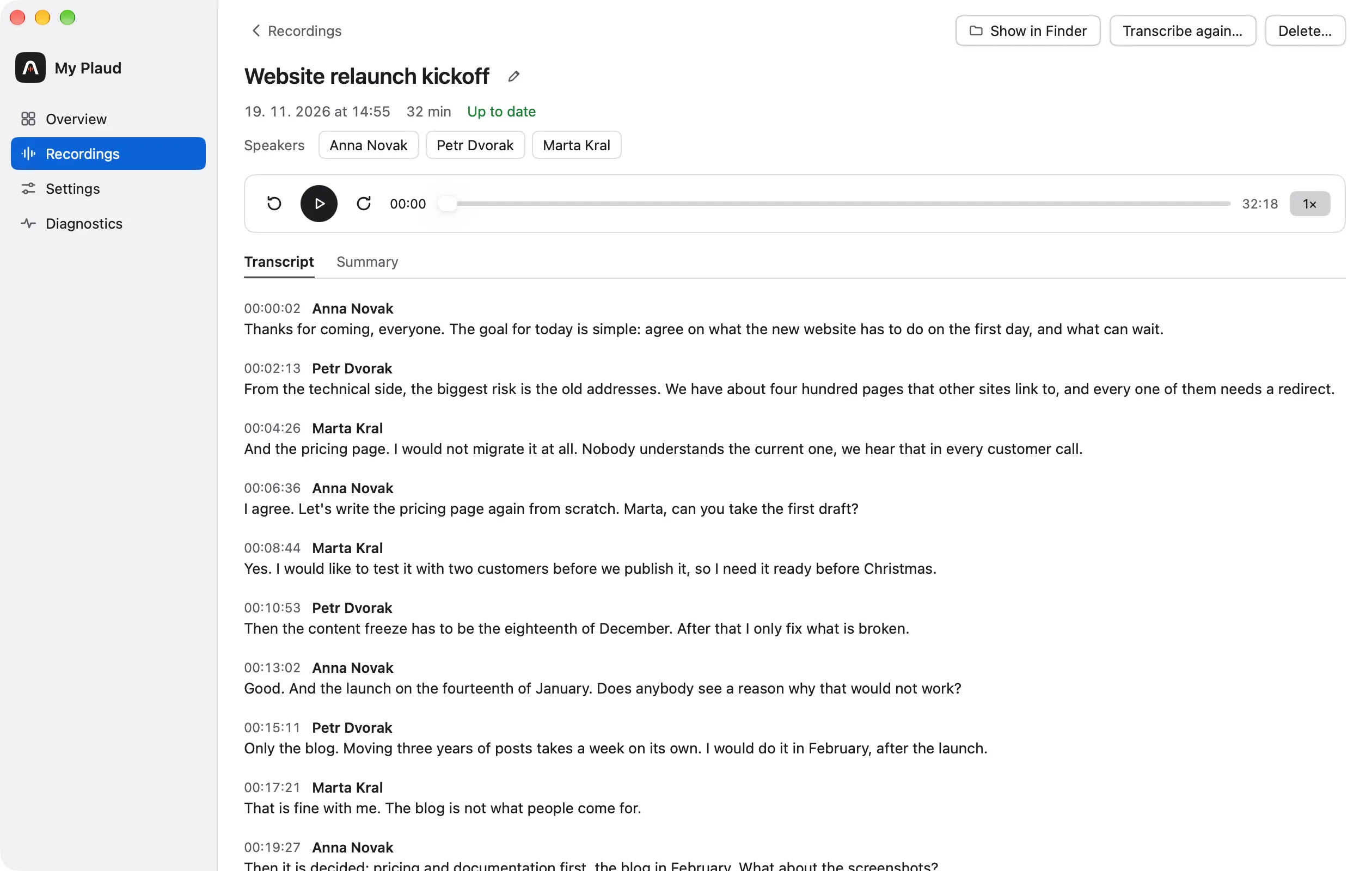
The detail shows the name you gave the recording, else the generated one, else its date and time. Under it are the date, the duration, the state, “Recorded on this Mac” for a recording made here, and one chip per speaker. Show in Finder opens the folder; Transcribe again… and Delete… work as in the list, for this recording.
Playing
The bar under the header plays the stored audio: 15 seconds back and forward, play and pause (also Space), the position, and the speed (1×, 1.25×, 1.5×, 2×). The turn being played is highlighted and kept in view; a click on a turn plays from its start. The audio keeps playing on the Summary tab and stops when you go back to the list or close the window.
A recording made on this Mac with a video shows the video above the player bar, in step with the transcript. Open video opens it in the default player.
Naming speakers
Click a speaker’s chip, or the speaker’s name in a turn, and type a name. An empty name removes it.
- A name for “Speaker N” is used in this recording only.
- A name for a speaker from the ElevenLabs speaker library is used in every recording, and the other transcripts are updated at once.
Speakers explains the library.
Correcting text
Hover over a turn and press Edit (or use its context menu), change the text, and press Save (⌘Return) or Cancel (Esc). A corrected turn is marked “edited”; Revert in its context menu brings back the text it had before.
Corrections are stored apart from the transcript, in a hidden file in the recording’s folder. transcript.md shows them; the raw and the cleaned transcript are never changed by them.
Renaming
Click the title (or the pencil next to it), type a name, and press Return or Save. The name is shown in the list and, with “Add the name to the folder” on, goes on the folder. It stays when the summary is written again or the recording is transcribed again. Save an empty name to go back to the generated one.
The summary
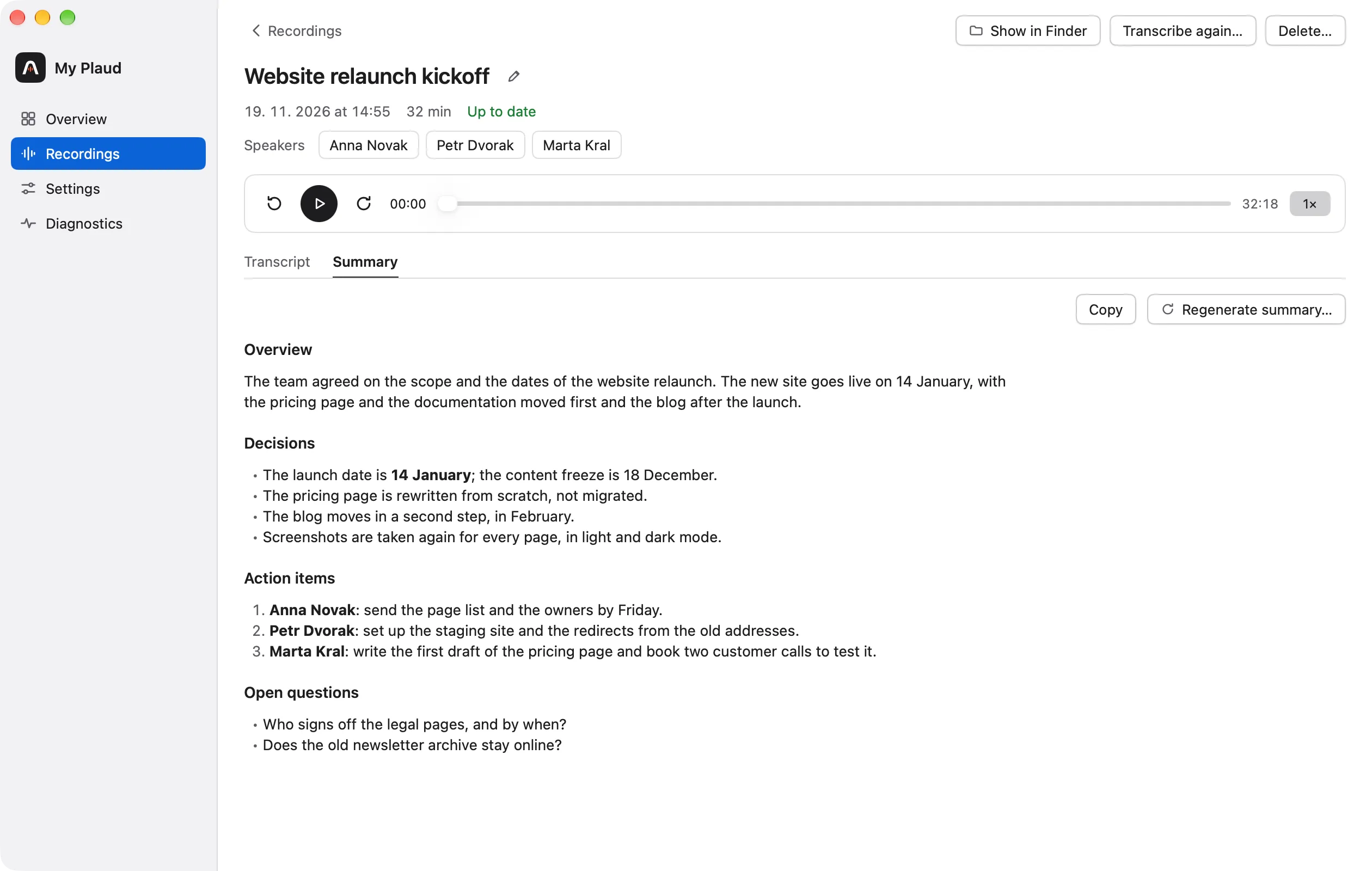
The Summary tab shows summary.md. Copy puts the whole summary on the clipboard as Markdown; any part of it can also be selected and copied.
When the transcript has changed since the summary was written (you corrected the text or named a speaker), the tab says so. Nothing is written again on its own. Regenerate summary… sends the transcript as you now see it to the summary model’s provider once, after a confirmation, and replaces the summary and the generated name, but not a name you gave.
Transcribing again
Transcribe again… replaces the transcript. Your corrections and the names you gave “Speaker N” in this recording are lost; the confirmation says so. The name you gave the recording and the library speakers’ names stay.
Deleting
Delete…, in the detail, under the list for the selected recordings, or in a row’s context menu, moves each recording’s whole folder (audio, transcript, summary, samples, video) to the macOS Trash after a confirmation. Nothing changes in Plaud.
- A deleted recording that is still in Plaud is not downloaded again.
- To undo, put the folder back from the Trash (Put Back in Finder); the next sync finds it and keeps it as before.
- The app never empties the Trash.
Only transcribed recordings are listed, so the others are deleted in Finder; a folder deleted that way is downloaded again.
Recordings deleted in Plaud
By default, a recording that disappears from Plaud stays in the archive and is marked as removed. With Move recordings deleted in Plaud to the Trash on (Settings, General), a sync moves it to the Trash instead.
As a safeguard, when more than 5 recordings and more than a quarter of the archive disappear in one sync, or the list from Plaud holds none of the archived recordings (after logging in to another account, say), they are only marked as removed.
One job at a time
While another job runs (a sync, say), Save, Regenerate and Delete… are disabled and say which job is running. What you typed stays, so you can save when the job ends.